Add B1 to Your Home Screen
Get one tap access to your church app, right from your phone, no app store needed.
On iPhone (Safari)
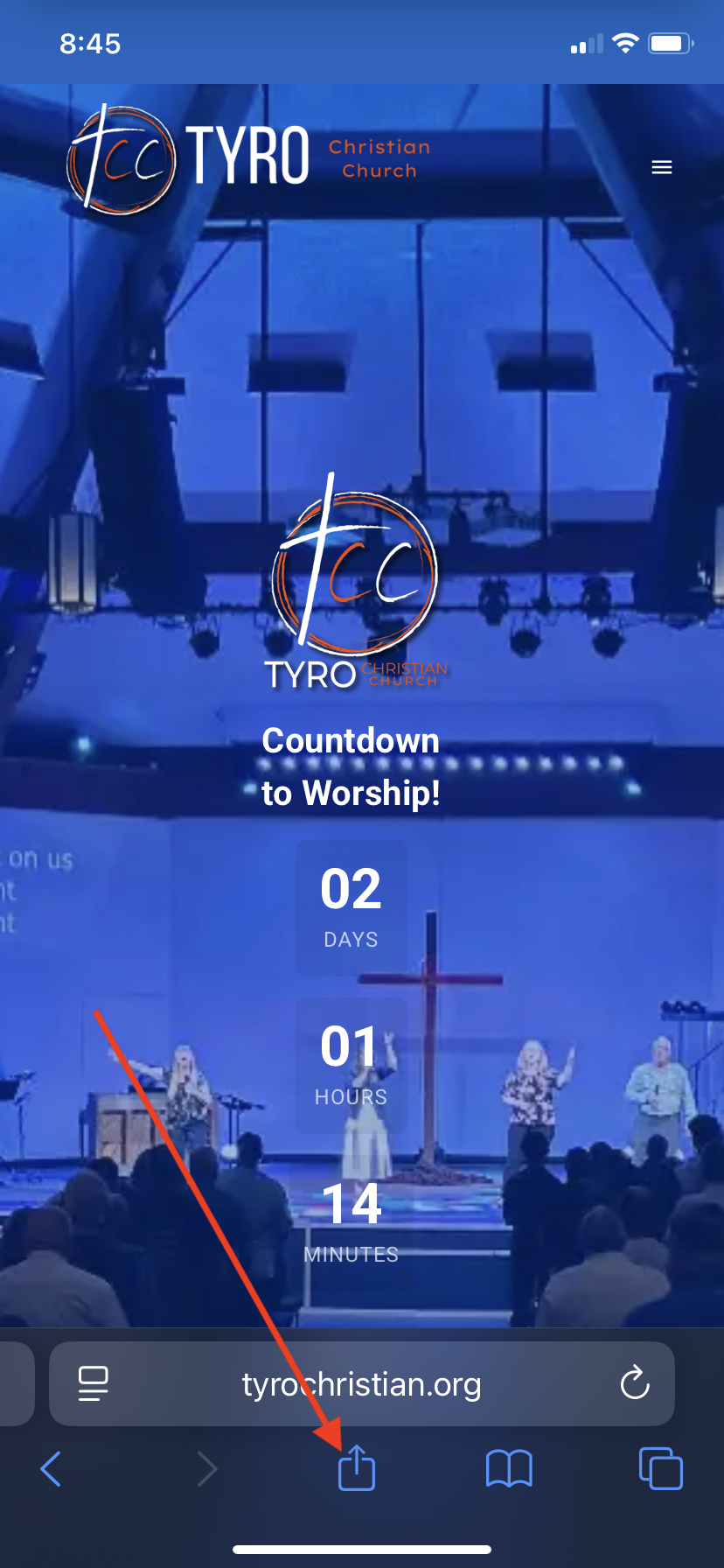
- 1Open Safari and go to your church website or (your church subdomain).b1.church
- 2Tap the Share button at the bottom of the screen (the square with an arrow pointing up)
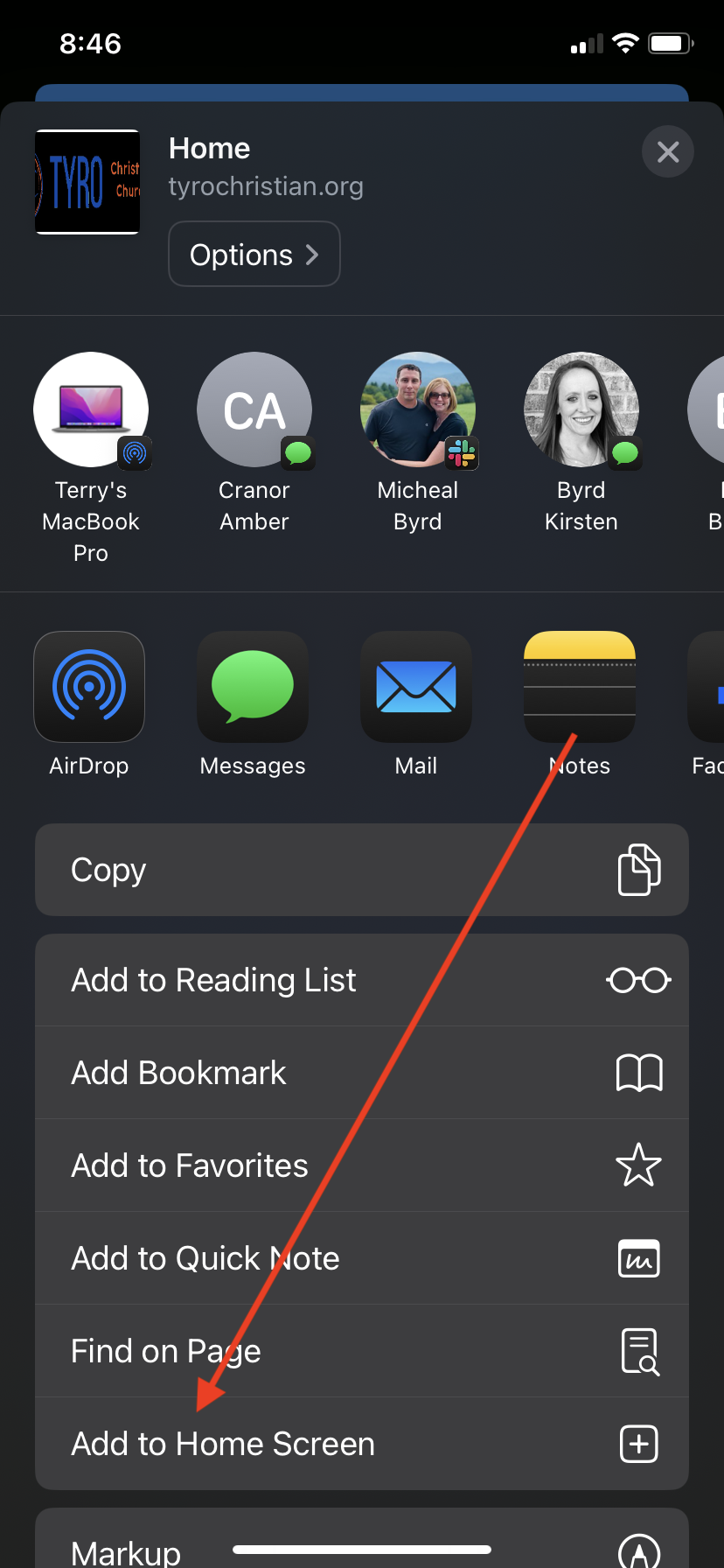
- 3Scroll down and tap "Add to Home Screen"
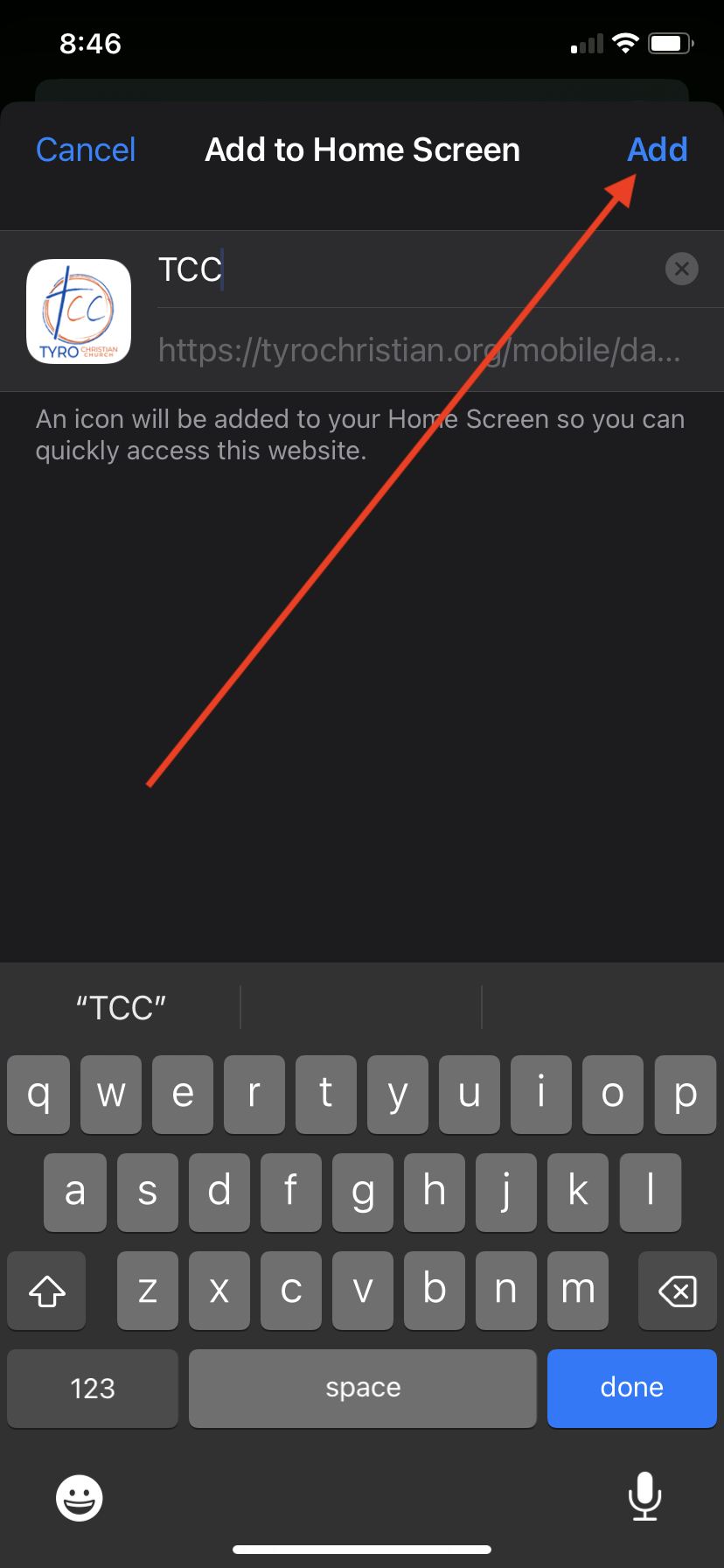
- 4Tap "Add" in the top right corner
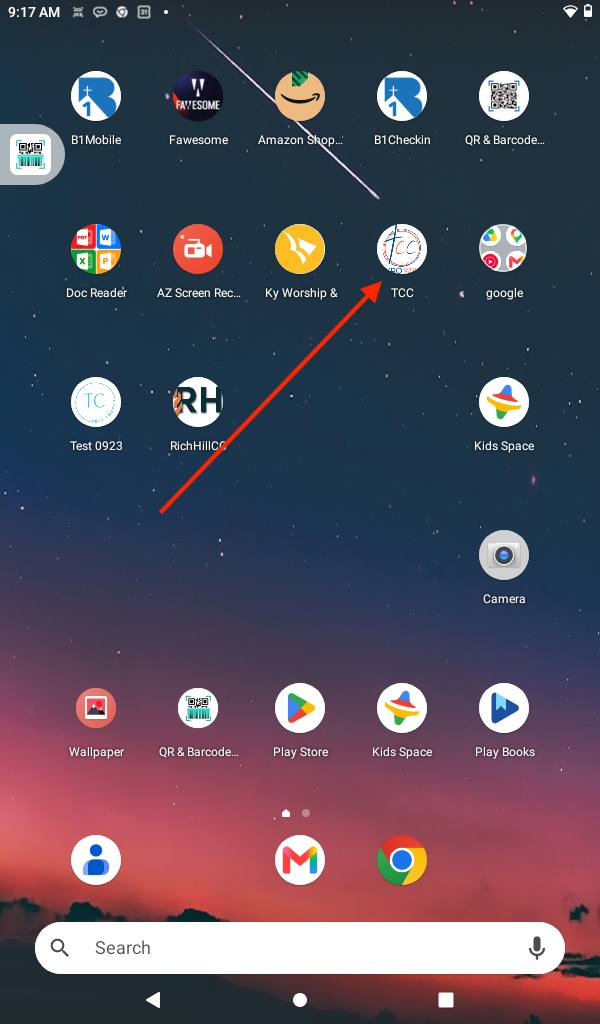
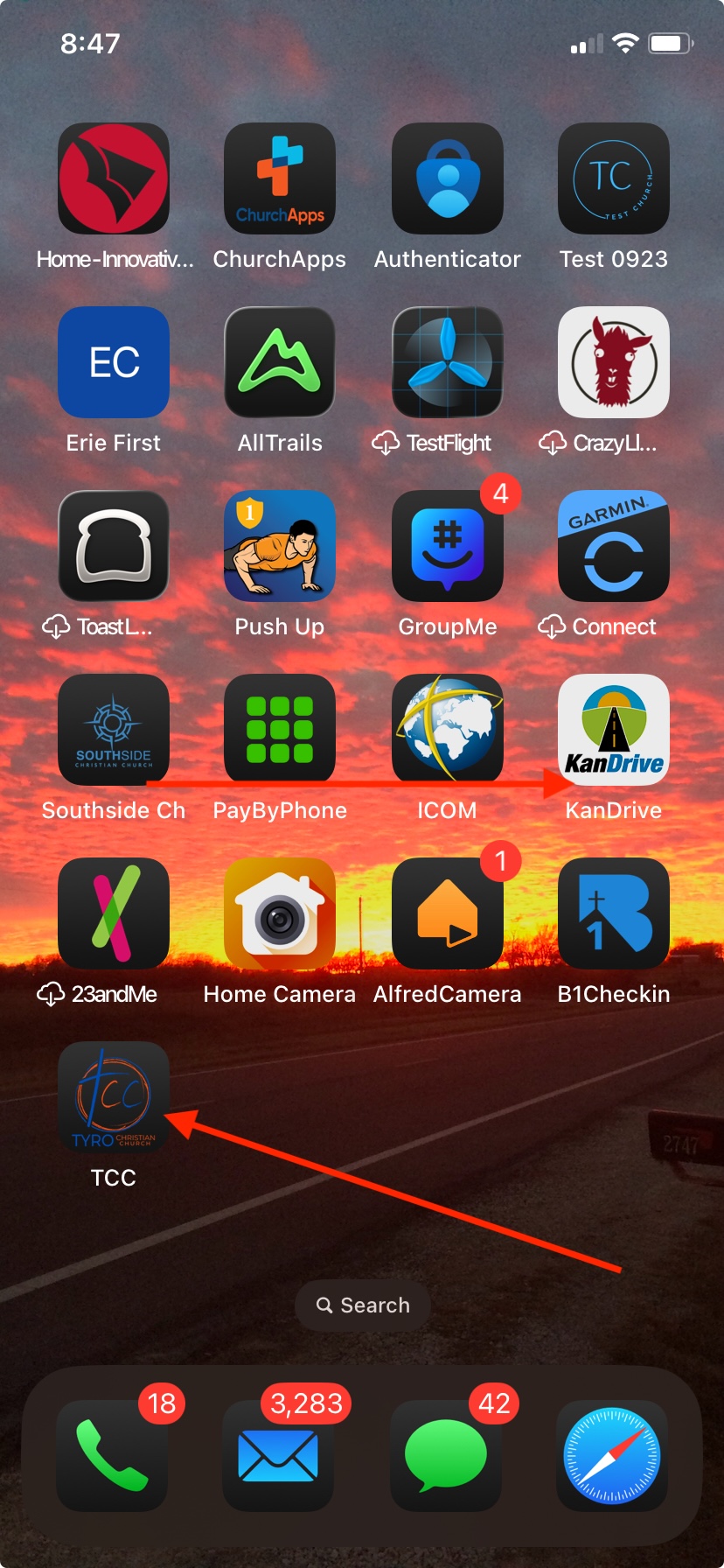
- 5You will now see a B1 icon on your home screen, just like a regular app
On Android (Chrome)
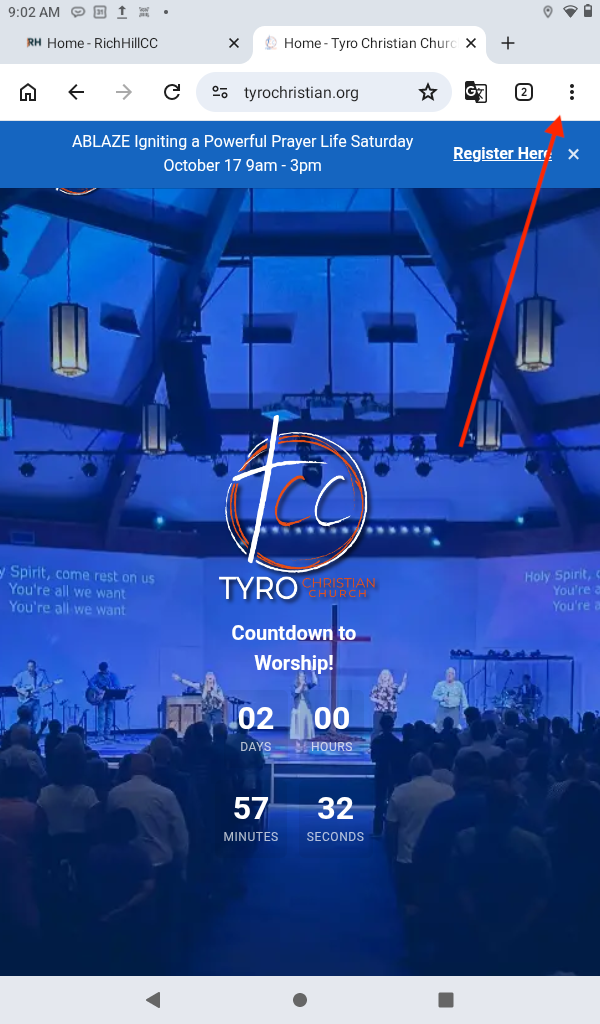
- 1Open Chrome and go to your church website or (your church subdomain).b1.church
- 2Tap the three dot menu in the top right corner
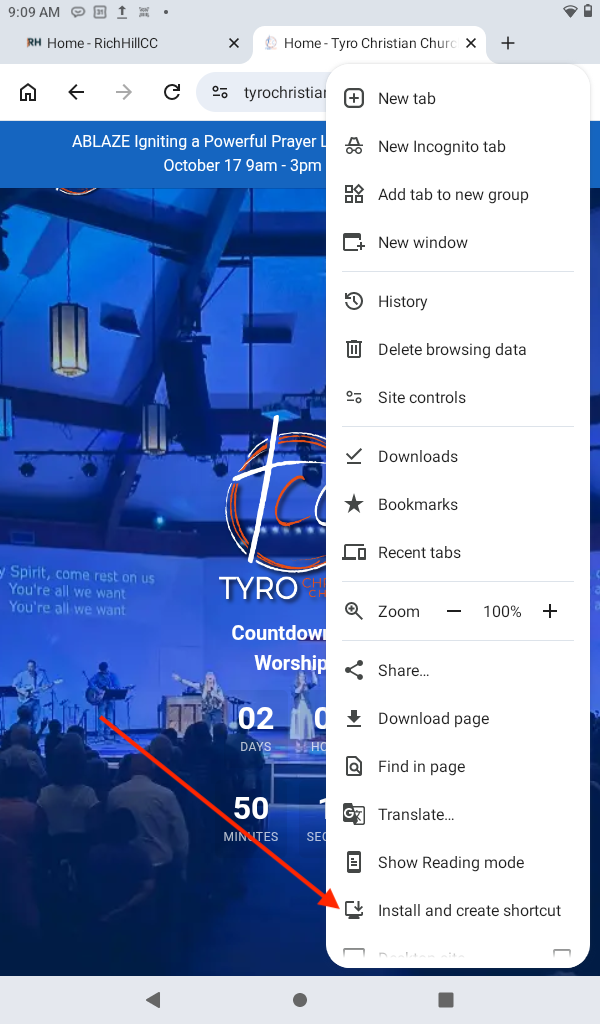
- 3Tap "Add to Home screen" or "Install app"
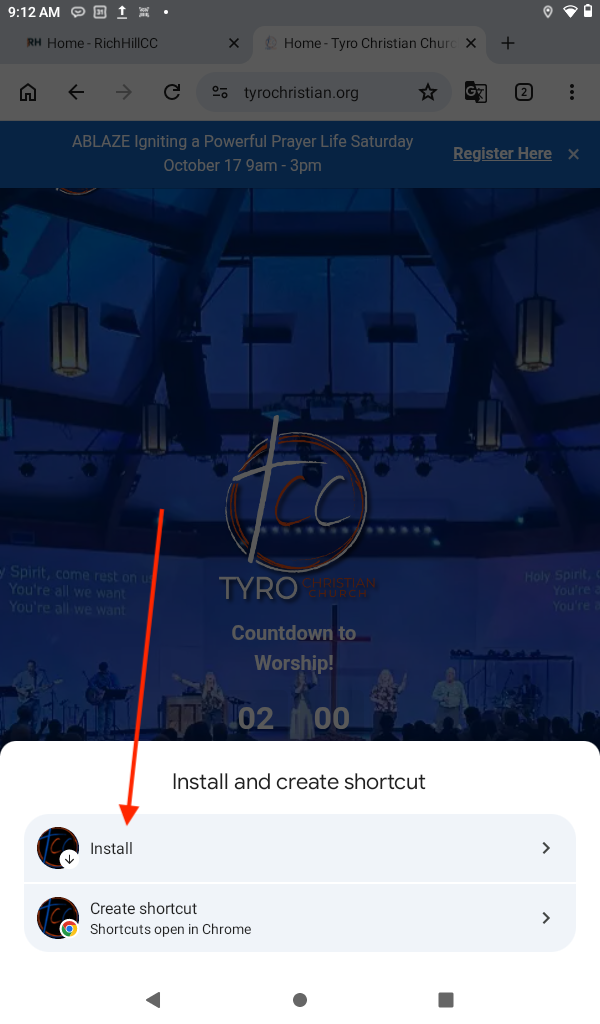
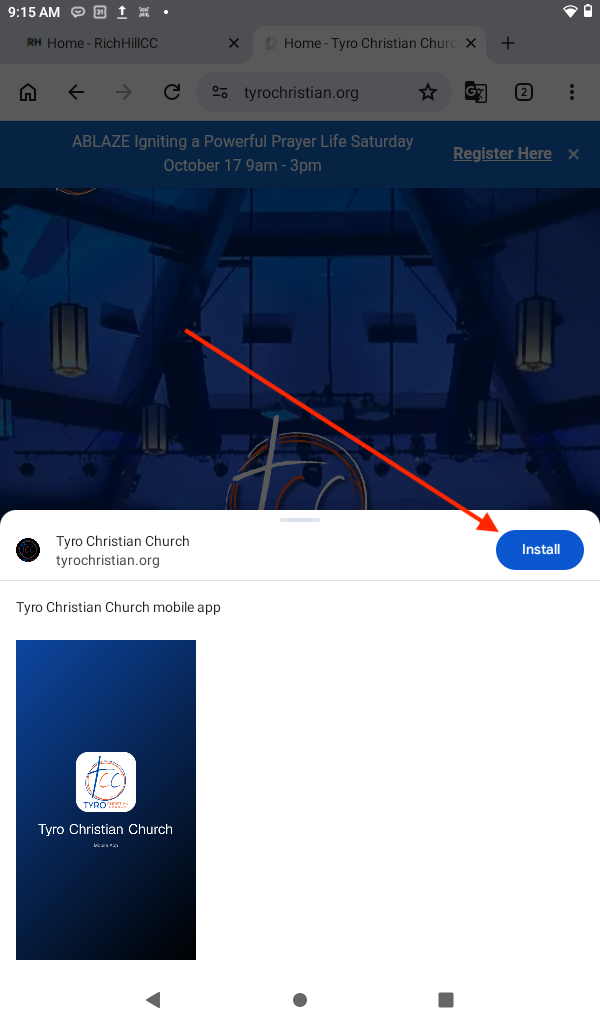
- 4Tap "Install" or "Add"
- 5The B1 icon will appear on your home screen